
 Chrome
BulkPublish
Chrome
BulkPublish
Share any page to social media from Chrome
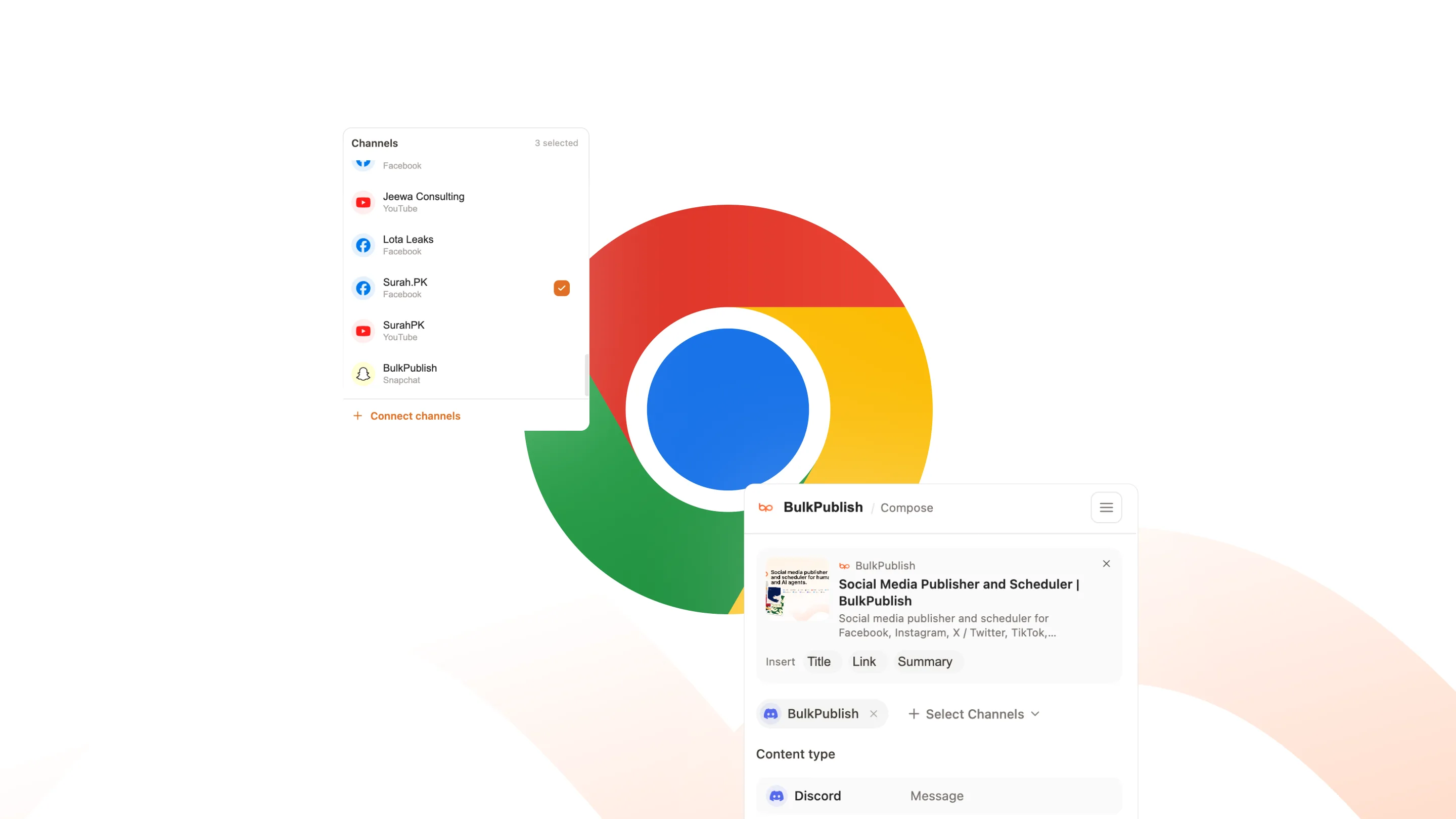
Most posts start as a tab you have open. With BulkPublish in Chrome, that tab becomes a post in a couple of clicks: the title, link and social image are already there, and you only write the part worth reading.
What Chrome can do
The extension can use 19 operations, sorted below into 5 areas. The list is read from the extension’s own code rather than written by hand.
| Area | Operations |
|---|---|
| Channel sets | List channel sets |
| Channels | Get platform-specific options for a channel,List channels |
| Media | Abort multipart upload,Complete multipart upload,Delete media file,Start multipart upload (large videos, up to 1GB),Upload media (single request) |
| Posts | Approve a pending post,Create post,Delete post,Get post,List posts,Publish immediately,Reject a pending post,Retry failed platforms,Update post |
| Utilities | Get quota usage,X (Twitter) API spend |
Where the posts go
Whatever Chrome schedules can go to any of these 15 networks, to one account or to all of them at once. Each one links to its own page with its limits and post types.
-
 Facebook
 -
 Instagram
 -
 X / Twitter
 -
 TikTok
 -
 YouTube
 -
 Threads
 -
 Bluesky
 -
 Pinterest
 -
 Google Business
 -
 LinkedIn
 -
 Mastodon
 -
 Discord
 -
 Telegram
 -
 Tumblr
 -
 Snapchat
Setting up Chrome
Add it from the Chrome Web Store, then pin the icon to the toolbar so it is one click away. Paste an API key into the extension settings once and it stays connected in that browser until you disconnect it.
- Create a BulkPublish account and connect the channels you want to publish to. The free plan connects three channels and does not ask for a card.
- Add the extension to Chrome from its store page, using the link further down.
- In BulkPublish, open Settings, then Developer, and make an API key.
- Click the extension icon, open Settings, paste the key and choose Save & verify. The key stays in this browser on this machine and is never synced to your other devices.
- Open any page and click the icon, or right-click the page, some selected text or an image and choose Share via BulkPublish.
Ways teams use this
Made for curators and anyone who shares links for a living: newsletter writers collecting stories, social managers posting industry news, founders sharing coverage the day it appears.
- Bulk upload a month of posts in one pass, then let the queue send them out at the times you set.
- Write once and cross-post everywhere. One post, adapted per network, goes to every connected channel together.
- Turn a blog or podcast RSS feed into automatic posts the moment a new item appears.
- Read the numbers back. Impressions, engagement and link clicks come back the same way the posts went out.
Details
The practical facts about Chrome in one place, for setting it up now or checking something later.
| Detail | Value |
|---|---|
| Authentication | API key, made under Settings then Developer |
| Get it from | Chrome Web Store |
| Operations | 19 operations |
| Networks | 15 networks |
Open Chrome · Read the API docs
Frequently asked questions
What people usually want to know before they connect Chrome.
What does the Chrome extension do?
It opens the BulkPublish composer on top of whatever page you are reading. The title and link are filled in, the page image is one click away, and you can publish straight away, schedule it, or send it for approval.
Can I share a selection or an image instead of the whole page?
Yes. Right-click some selected text or an image and choose Share via BulkPublish. The composer opens with exactly that, ready to edit.
Which networks can it publish to?
All 15 of them. Pick channels one by one or use a channel set, and change the caption per network. The character count for each network updates as you type.
Does it read the pages I visit?
Only when you click it or use the right-click menu, and only that one tab. Nothing runs in the background, and the page address is never sent anywhere to be fetched.
How does it sign in?
With an API key, made under Settings then Developer. The key is kept in this browser on this machine and not synced to your other devices. Disconnect in the extension settings removes it.
Is it free?
Yes. The extension is free and works on every plan, including the free one. Posts you schedule from it count against your plan exactly like posts written in the app.
Still stuck? The Help Center walks through it step by step.
Other integrations
BulkPublish also works with 28 other tools. Pick one to see how it connects.
-
 Claude
 -
 ChatGPT
 -
 Grok
Grok -
 Grok Bot
 -
 Muse
Muse -
 Manus
Manus -
 Cue
Cue -
 Cursor
 -
 Antigravity
 -
 Codex CLI
 -
 Gemini CLI
 -
 Windsurf
 -
 VS Code
 -
 Cline
Cline -
 Warp
Warp -
 OpenClaw
 -
 Hermes
 -
 n8n
n8n -
 Zapier
 -
 Make
Make -
 IFTTT
IFTTT -
 Firefox
 -
 REST API
 -
 MCP Server
 -
 Node SDK
 -
 Python SDK
 -
 Homebrew
 -
 Postman
Start publishing
Create an account, connect your channels, and your first post can be scheduled a couple of minutes later. Free plan, no card, cancel whenever you like.