
 Google Sheets
BulkPublish
Google Sheets
BulkPublish
Publish to social media from Google Sheets
Write a month of posts in a spreadsheet, then send them in one go. The BulkPublish add-on for Google Sheets treats each row as one post, with its caption, channels, media and time, and writes the status and a link to every live post back into the row.
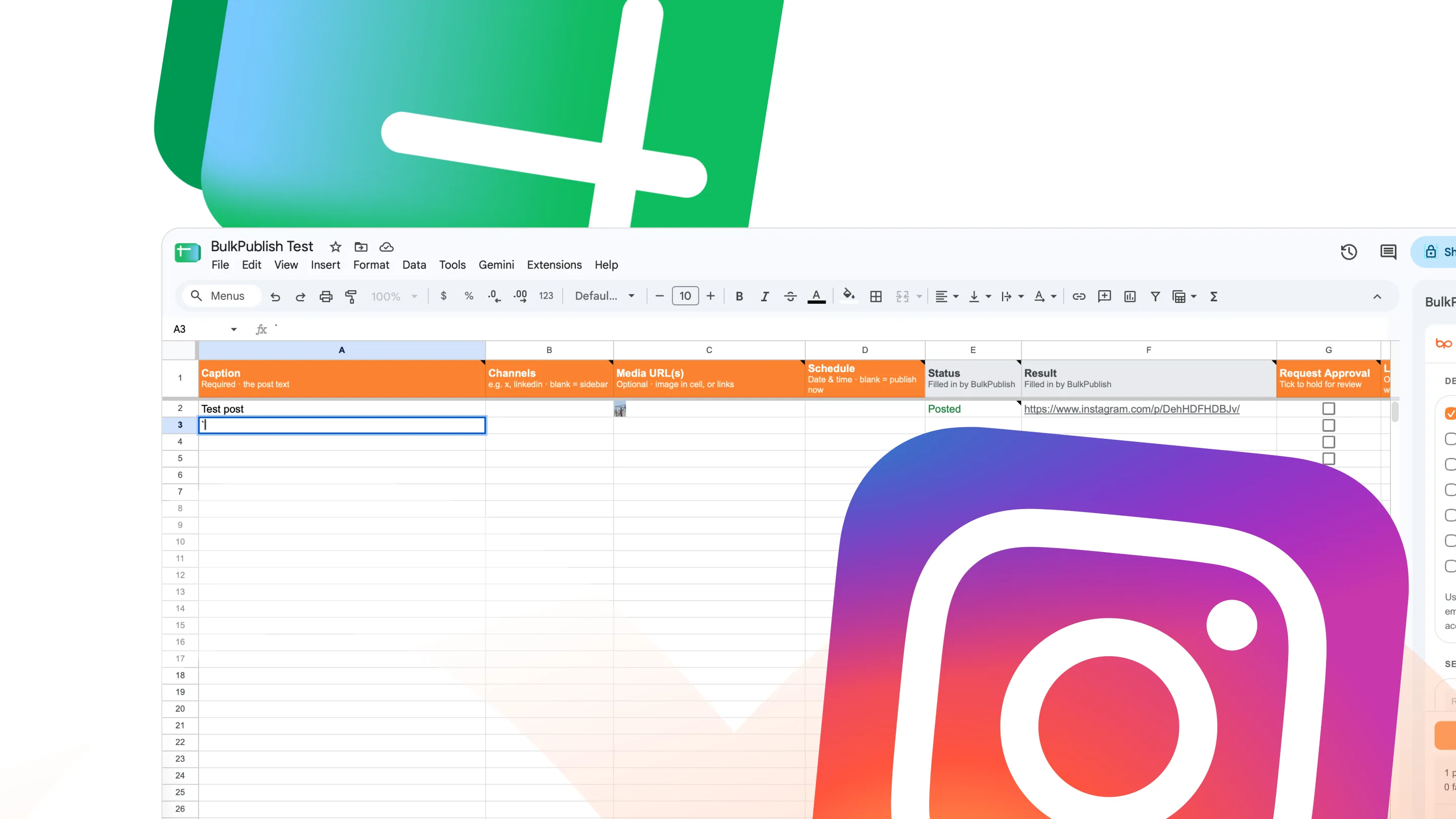
What Google Sheets can do
The plugin can use 10 operations, sorted below into 4 areas. The list is read from the plugin’s own code rather than written by hand.
| Area | Operations |
|---|---|
| Channels | Get platform-specific options for a channel,List channels |
| Media | Upload media (single request) |
| Posts | Approve a pending post,Create post,Get post,Publish immediately,Reject a pending post |
| Utilities | Get quota usage,X (Twitter) API spend |
Where the posts go
Whatever Google Sheets schedules can go to any of these 15 networks, to one account or to all of them at once. Each one links to its own page with its limits and post types.
-
 Facebook
 -
 Instagram
 -
 X / Twitter
 -
 TikTok
 -
 YouTube
 -
 Threads
 -
 Bluesky
 -
 Pinterest
 -
 Google Business
 -
 LinkedIn
 -
 Mastodon
 -
 Discord
 -
 Telegram
 -
 Tumblr
 -
 Snapchat
Setting up Google Sheets
Install it from the Google Workspace Marketplace, open Extensions, then BulkPublish, then Open sidebar, and paste an API key. Set up sheet adds a BulkPublish tab with every column explained, plus a How to use tab. The key is kept in your Google account, not in the sheet, so collaborators never see it.
- Create a BulkPublish account and connect the channels you want to publish to. The free plan connects three channels and does not ask for a card.
- Install the BulkPublish plugin in Google Sheets from Google Workspace Marketplace, using the link further down, and turn it on.
- In BulkPublish, open Settings, then Developer, and make an API key.
- Open the plugin settings in Google Sheets and paste the key.
- Publish something. Every operation in the table above is available from inside Google Sheets.
Ways teams use this
Made for teams that already plan content in a spreadsheet, and for bulk runs: select the rows and publish or schedule them together. Images can sit right in the cell or come from Google Drive and Dropbox links, approvals can be requested and decided from the sheet, and the sidebar shows your post limits and X credit cost before anything is sent.
- Bulk upload a month of posts in one pass, then let the queue send them out at the times you set.
- Write once and cross-post everywhere. One post, adapted per network, goes to every connected channel together.
- Turn a blog or podcast RSS feed into automatic posts the moment a new item appears.
- Read the numbers back. Impressions, engagement and link clicks come back the same way the posts went out.
Details
The practical facts about Google Sheets in one place, for setting it up now or checking something later.
| Detail | Value |
|---|---|
| Authentication | API key, made under Settings then Developer |
| Get it from | Google Workspace Marketplace |
| Operations | 10 operations |
| Networks | 15 networks |
Open Google Sheets · Read the API docs
Frequently asked questions
What people usually want to know before they connect Google Sheets.
What does the Google Sheets plugin do?
It lets you publish to your social accounts from inside Google Sheets. The caption is filled in from what you are writing, and you can publish straight away, schedule it, or hold it for a teammate to approve.
Which networks can it publish to?
All 15 of them. Connect your accounts once in BulkPublish and every one of them shows up in the plugin.
How does it sign in?
With an API key, made under Settings then Developer. Use a key just for this plugin, so you can revoke it on its own without touching anything else.
Does Google Sheets have to stay open for a scheduled post to go out?
No. Once a post is scheduled it publishes at its time, whether Google Sheets is open or not.
Is it free?
Yes. The plugin is free and works on every plan, including the free one. Posts you send from it count against your plan exactly like posts written in the app.
Still stuck? The Help Center walks through it step by step.
Other integrations
BulkPublish also works with 34 other tools. Pick one to see how it connects.
-
 Claude
 -
 ChatGPT
 -
 Grok
Grok -
 Grok Bot
 -
 Muse
Muse -
 Manus
Manus -
 Cue
Cue -
 OpenAI dots
 -
 Claude Duet
 -
 Cursor
 -
 Antigravity
 -
 Codex CLI
 -
 Gemini CLI
 -
 Windsurf
 -
 VS Code
 -
 Cline
Cline -
 Warp
Warp -
 OpenClaw
 -
 Hermes
 -
 n8n
n8n -
 Zapier
 -
 Make
Make -
 IFTTT
IFTTT -
 WordPress
 -
 Obsidian
 -
 Notion
 -
 Chrome
 -
 Firefox
 -
 REST API
 -
 MCP Server
 -
 Node SDK
 -
 Python SDK
 -
 Homebrew
 -
 Postman
Start publishing
Create an account, connect your channels, and your first post can be scheduled a couple of minutes later. Free plan, no card, cancel whenever you like.